
Using Shift Incentives
You can use the AI-powered shift incentivization functionality in the Schedule Planner to apply incentives to open shifts, view incentive information, and notify eligible employees about incentivized open shifts.
In the Schedule Planner, select Incentives to access the Incentives view and display the Incentives action bar. The Open Shifts section of the schedule expands to show the open shifts incentive information, fill rate and coverage impact, and ease-of-fill indicators. Incentivized shifts are visually marked with an incentives icon to distinguish them from non-incentivized shifts. To close the Incentives view, select Incentives again on the action bar.
Open shifts in the Incentives view display the following information:
- Fill rate: The ratio of open (unassigned) shifts to required shifts (assigned + open shifts).
- Coverage impact: The contribution of the open shift to reducing the undercoverage if the open shift were filled. It is based on the coverage count information for the span of time covered by the open shift.
- Hard-to-fill indicator: Visual indicators that denote the hard-to-fill prediction (hard to fill, moderate to fill, easy to fill open shift prediction)
- Visual incentive icon to distinguish incentivized shifts from non-incentivized shifts
- Incentive name and amount
The fill rate, coverage impact, incentive name, and incentive amount also display in the open shift editor, as well as the open shift glance and tooltip.
You can perform the following tasks using options on the Incentives action bar:
- Generate Predictions: Computes hard-to-fill predictions for all open shifts loaded in the Schedule Planner reflecting the probability of an open shift to remain unfilled.
- AI Recommendations: Requests an AI-powered incentive recommendation driven by the shift’s prediction to remain unfilled. You can either automatically apply the incentive recommendations to all open shifts that are predicted as hard to fill or to explicitly-selected open shifts regardless of their hard-to-fill prediction.
- Remove Incentive: Removes incentives from open shifts you no longer want to incentivize.
- Notify Open Shifts: Notifies eligible employees (by email, push notifications on mobile, or Control Center notifications) of incentivized open shifts based on their likelihood of picking up the open shift. You can send notifications for all incentivized shifts or for shifts that you explicitly select. Use the Call Log in the Schedule Planner Audit tab to track which employees are notified of incentivized shift recommendations and the employee responses.
Generate Predictions
- Save the schedule.
- SelectGenerate Predictions. The AI predictor assigns a probability score to any new open shifts that have been created since the last prediction generation, which translates into a visual indicator (hard-to-fill, easy-to-fill, or moderate-to-fill) that displays on the open shifts. indicator displays on the open shifts that the system computes as hard-to-fill shifts.
Note: Training data of at least 100 open shifts must be available to generate predictions. If training data is missing, an error message displays.
Apply AI Recommendations
- Select AI Recommendation.
- Select either Apply to all eligible shifts or Select shifts.
- Apply to all eligible shifts: Applies the incentive only to open shifts that are predicted as hard-to-fill shifts (shifts whose probability to remain unfilled is above the default threshold value).
- Select shifts: Select the open shifts to which you want the incentive applied. This option ignores the default probability threshold. It will incentivize any selected shift regardless of its probability prediction score.
When the incentive has been added, the Incentive icon, incentive name, and incentive amount displays on the shifts.
- Select Save.
Remove Incentives
- From the Action Bar:
- Select Remove Incentive.
- Select one or more open shifts from which you want to remove the incentive. The incentive information is removed from the selected shifts.
- Select Save.
- From the shift glance:
- Right-click on an open shift.
- Select Remove Incentive. The incentive information is removed from the shift.
- Select Save.
Notify Employees about Open Shifts
Eligible employees are derived from matching rules of a procedure set or an employee's primary job or job transfer set.
Employee preferences are inferred from the AI-powered preference scoring model that scores the attractiveness of an open shift to each employee.
- To send notifications for all incentivized shifts:
- Specify the employee notification criteria:
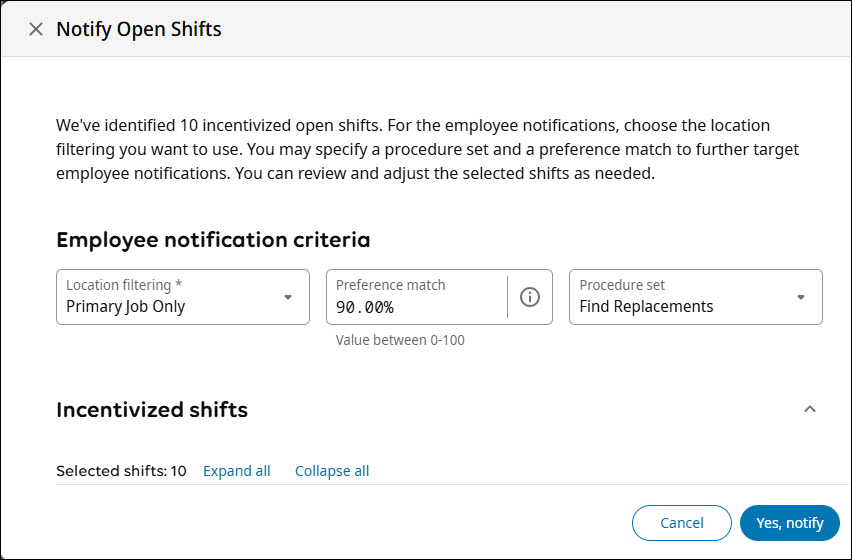
- In Location filtering, select whether to target employees based on their Primary Job Only (default), Primary Location, or Employee Job Transfer Set.
- (Optional) In Preference match, enter a percentage value (between 0 and 100) to filter employees based on the shift attractiveness score with employees' inferred preferences. A lower percentage match will target more employees, but they will be less of a match for the selected shifts. A higher percentage match will target less employees, but they will be a better match for the selected shifts.
- (Optional) In Procedure set, select a procedure set to control employee filtering and shift matching criteria.
- Specify the employee notification criteria:
- To send notifications for selected shifts:
- To use the Call List: