
Configure Visibility Period Actions
employee visibility periodsautomated notifications for;employee visibility periodsautomated actions for visibility period actionsVisibility period actions are notifications and business processes that you want the system to initiate at the start and end of employee visibility periods. For example, you might want the system to send notifications to employees one hour before a visibility periods starts and one day before it ends.
Before you begin
The process of configuring a visibility period action involves associating the visibility period action with a workflow notification, a business process, or both. (You can create a visibility period action without specifying either of these values, but it will not result in the desired behavior.)
See Workflow notifications and Business Processes Setup for more information.
To configure a visibility period action
- Navigate to Administration > Time application setup > Employee Self Service > Visibility Period Actions.
- Select Create
. - In Name, enter a name for the visibility period action. Use a meaningful name that will be easy to recognize when you later associate this visibility period action with an employee visibility period.
- [Optional] In Description, enter a description of the visibility period action.
- Select Create
. - In the Create Action window:
- In Perform action when, select whether you want the action to be initiated when the visibility period opens or closes. You can choose overall visibility period settings or individual employee visibility period settings:
- Overall visibility period opens: the system initiates the action at the start of the visibility period.
- Overall visibility period closes: the system initiates the action at the end of the visibility period.
- Individual employee visibility period opens: the system initiates the action separately for each individual group or recurring period as they open throughout the visibility period.
- Individual employee visibility period closes: the system initiates the action separately for each individual group or recurring period as they close throughout the visibility period.
Whether you choose an overall or individual employee setting varies based on how you have configured your visibility period. Refer to Example for more information.
- In Start Action, specify whether you want the action to occur after or before the event specified in Perform action when.
- In Time Offset, specify the time, in hours and minutes, relative to the event at which you want to start the action. The default format is hh:mm but might be different for your environment. For example, if you want the action to occur 30 minutes before or after the event, you would type :30 or 00:30.
- In Workflow Notification, select the notification you want the system to send for the selected event. See Workflow notifications for more information.
- In Business Process, select the business process you want the system to initiate for the selected event. See Business Processes Setup for more information.
- Select Save.
- In Perform action when, select whether you want the action to be initiated when the visibility period opens or closes. You can choose overall visibility period settings or individual employee visibility period settings:
- On the Visibility Period Actions page, select Save.
Consider these illustrations of different employee visibility period configurations. In this example, the action defined is a notification that the employee visibility period is opening or closing:
- Example A shows an employee visibility period configured as a single period available to all groups:
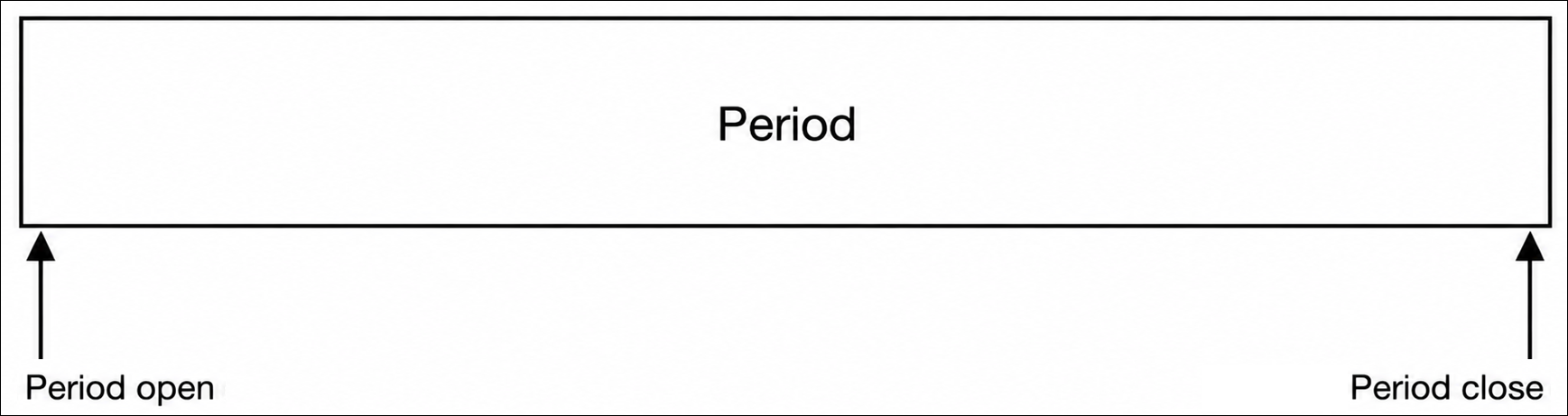
If your employee visibility period is configured this way, you need to use one of the Overall visibility period settings. Because there are no groups defined within the employee visibility period, the Individual employee visibility period settings are not recognized by the system. In this case, all employees are notified when the period opens and closes. - Example B shows an employee visibility period configured using several staggered periods:
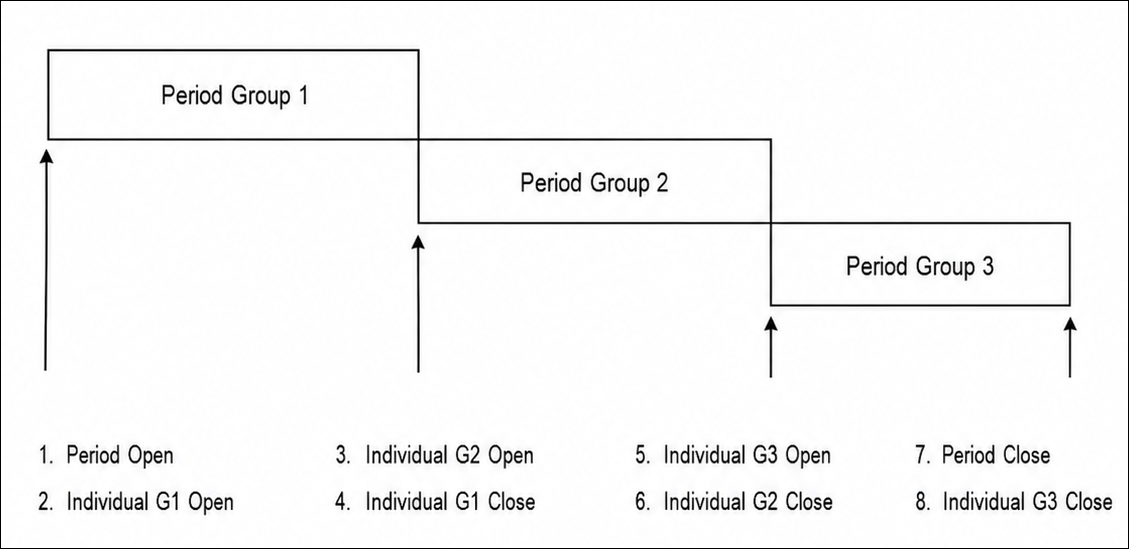
When your employee visibility period is configured this way, you can use either Overall visibility period or Individual employee visibility period settings.If you use Overall visibility period, the system notifies all employees in all groups when the period opens and when the period closes (step 1 and step 7). If you use Individual employee visibility period, the system notifies employees on a group-by-group basis when the visibility period for their group opens and closes (step 2 and step 4, for example). Notifications are sent to only those employees in that group.
- Example C shows an employee visibility period configured using several overlapping periods:
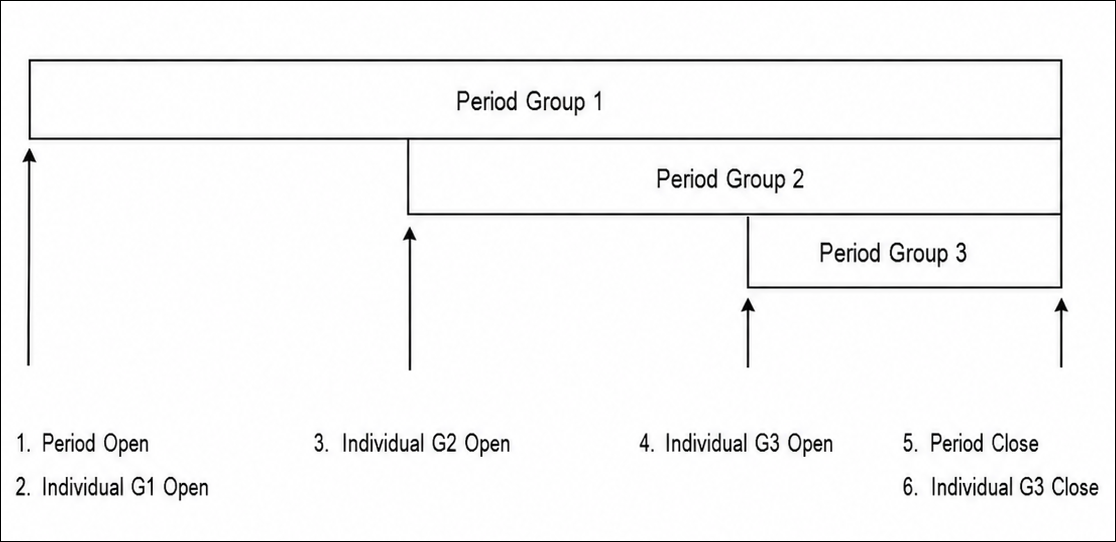
In this example, the opening of the periods for Group 2 and Group 3 are delayed; the period ends at the same time for all groups.The Perform action when settings here have the same effect as those described in Example B: Overall visibility period notifies employees in all groups when the visibility period opens and closes; Individual employee visibility period notifies employees of a group only when their period opens and closes.
Next steps
After you create one or more visibility period actions, associate them with the desired employee visibility periods. See Manage Employee Visibility Periods for more information.